The short answer
Import businesses as companies (organizations in Pipedrive, accounts in Salesforce) and each email as a contact linked to its company. Before importing, split extra emails into their own rows, convert phones to E.164, reduce websites to a bare domain, and decide how to treat branches: 35.5% of rows in our files share a website with another location. Keep rating, hours and socials as custom properties.
A lead list is a flat file: one row per business, every fact in a column. A CRM is not flat. HubSpot, Salesforce and Pipedrive all separate the business (company, account, organization) from the people at it (contacts, persons), and each has its own rules for what counts as a duplicate. Most bad imports come from ignoring that split: three emails crammed into one contact, fifty pharmacy branches merged into one company, or review ratings dropped into Salesforce's Hot/Warm/Cold Rating field.
This guide uses the columns of our own files as the worked example. Every ready-made list ships about 40 columns in CSV and Excel (39 in the Palm Beach County real estate file), and the 12 free sample rows on each list page download in exactly that format, so you can test the mapping before you buy anything.
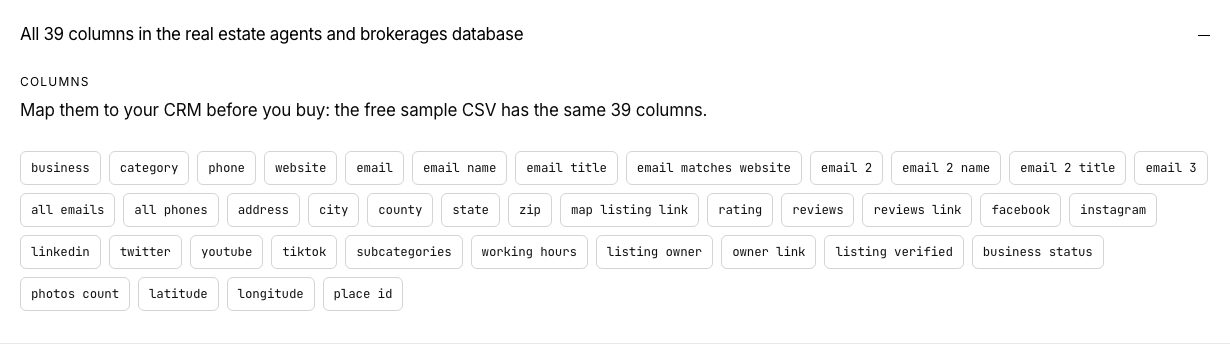
What is in the file, column by column
Before mapping, know which columns are nearly always filled and which are sparse. Business name, category, address, city, state, ZIP, coordinates and the listing ID are on every row. Phone is on 95.4%, website on 80.8%. Emails, named contacts and social profiles depend on the industry (see which industries publish email addresses).
Share of rows with each column filled, across 285,744 businesses
Two things in that chart drive the import design. First, a business with an email usually has more than one: 41.2% of all rows carry three addresses and 11.9% carry two. Those are different inboxes (an owner, a front desk, a second partner), so each should become its own contact. Second, county is filled on only about a third of rows. If you route by county, derive it from ZIP before importing; our territory guide shows how.
The field mapping for HubSpot, Salesforce and Pipedrive
Import the business as a company-level record and the emails as people linked to it. In HubSpot and Pipedrive you can do both from one file: Pipedrive links everything in a row, and HubSpot creates and associates a company and a contact when both are mapped. In Salesforce, the Data Import Wizard handles accounts, contacts and leads up to 50,000 records at a time; import businesses as accounts and named emails as contacts, or use leads if your team works a lead queue (a lead needs a Last Name and a Company).
| Our column | HubSpot | Salesforce | Pipedrive |
|---|---|---|---|
| business | Company name | Account Name (or Lead: Company) | Organization: Name |
| website | Company domain name (bare domain) and Website URL | Website | Custom field: Website |
| phone | Company: Phone number | Phone | Organization custom field, or Person: Phone |
| email, email_2, email_3 | Contact: Email (one contact per address) | Contact or Lead: Email | Person: Email |
| email_name | Contact: First name, Last name (split) | First Name, Last Name | Person: Name |
| email_title | Contact: Job title | Title | Custom field: Job title |
| address, city, state, zip | Street address, City, State/Region, Postal code | Billing Street, City, State, Zip | Organization: Address |
| category, subcategories | Custom: Category (not Industry) | Custom field (not the Industry picklist) | Custom field or label |
| rating, reviews | Custom number properties | Custom number fields (not Lead Rating) | Custom number fields |
| facebook, linkedin, twitter | Facebook company page, LinkedIn company page, Twitter handle | Custom URL fields | Custom fields |
| instagram, youtube, tiktok | Custom URL properties | Custom URL fields | Custom fields |
| working_hours | Custom text property | Custom long text | Custom large text |
| county | Custom property | Custom field | Custom field |
| claimed_listing, business_status | Custom properties | Custom fields | Custom fields |
| listing_id, listing_link, latitude, longitude | Custom properties (listing_id as your source ID) | External ID field | Custom fields |
Clean the file before you import
From list file to CRM in six steps
- 1Open the CSVExcel or Google Sheets, UTF-8
- 2One row per emailSplit email_2 and email_3 into their own rows
- 3Normalise phones+1 561-555-0123 to +15615550123
- 4Bare domainsStrip https, www and paths
- 5Decide on branchesSame domain: merge or keep apart
- 6Import and spot-checkOpen 10 records, check links
1. Split multiple emails into contact rows
Keep one row per email address, carrying the business columns with it. The simplest way is to stack three copies of the sheet (one using email, one email_2, one email_3), then delete rows where that email is blank. The name and title columns belong to the matching address: email_name goes with email, email_2_name with email_2. If you only want one contact per business, keep email; it is the address our pipeline ranked first for that business.
# Python (pandas): one row per email, with the business columns repeated
import pandas as pd
df = pd.read_csv("list.csv", dtype=str)
parts = []
for col, name, title in [("email", "email_name", "email_title"),
                         ("email_2", "email_2_name", "email_2_title"),
                         ("email_3", None, None)]:
    p = df[df[col].notna()].copy()
    p["contact_email"] = p[col]
    p["contact_name"] = p[name] if name else ""
    p["contact_title"] = p[title] if title else ""
    parts.append(p)
contacts = pd.concat(parts).drop_duplicates("contact_email")
contacts.to_csv("contacts.csv", index=False)2. Convert phones to E.164
Every phone in our files is already in one form, +1 561-555-0123, so converting to E.164 (the +15615550123 form that dialers and SMS tools expect) is a single formula. HubSpot and Salesforce accept either, but a consistent format makes duplicate checks work.
Google Sheets:  =REGEXREPLACE(C2, "[^0-9+]", "")
Excel:          =SUBSTITUTE(SUBSTITUTE(C2, " ", ""), "-", "")
3. Reduce websites to a bare domain
Google Sheets:  =REGEXEXTRACT(LOWER(D2), "^(?:https?://)?(?:www\.)?([^/?#]+)")
Excel 365:      =LET(u, SUBSTITUTE(SUBSTITUTE(SUBSTITUTE(LOWER(D2), "https://", ""), "http://", ""), "www.", ""),
IFERROR(LEFT(u, FIND("/", u) - 1), u))4. Decide what a duplicate means
Inside one of our files, every row is a separate map listing (no listing ID repeats), so true duplicates are rare. What you will see is branches: 35.5% of rows with a website share that website with another row in the same file, and 16.2% of rows with a phone share the number. Those are pharmacy and bank branches, hotel brands, brokerages whose agents use the firm's site, and practices with several offices. HubSpot treats the domain as the company's identity, so importing those rows maps every branch to one company. That is right if you sell to head office and wrong if you sell to each location. To keep branches apart, map the domain to Website URL instead of Company domain name, or add the city to the company name.
Rows that share a contact point with another row in the same file
Shared with another locationUnique in the file
If you buy several lists, dedupe across them on listing_id: only 0.3% of listings appear in more than one of our 323 files, mostly where a metro list overlaps a state list. Against your existing CRM data, dedupe contacts on email and companies on domain, which is what HubSpot does by default.
5. Tidy social links
Facebook, LinkedIn, X and YouTube values are full URLs. 19.8% of Instagram values are a bare handle like studio.name; prefix them with https://www.instagram.com/ so the CRM renders a clickable link.
Which columns to keep, and which to leave out
Keep anything a rep would filter or sort by. Rating and review count let you prioritise established businesses (businesses with more reviews publish emails more often; see more reviews, more emails). Working hours tell callers when to dial (see cold calling small businesses). The claimed_listing column marks owners who manage their own listing, which is a decent proxy for an engaged owner. Keep listing_id as the source ID so a re-import updates instead of duplicating.
Import as properties
- business, category, phone, website, domain
- Each email as a contact, with name and title
- Address, city, state, ZIP, county
- rating, reviews, working_hours
- Social profile URLs
- claimed_listing, business_status, listing_id
Keep in the file only
- all_emails and all_phones (already split out)
- email_matches_website (use it to filter, then drop)
- reviews_link and owner_link
- photos_count
- latitude and longitude, unless you map territories in the CRM
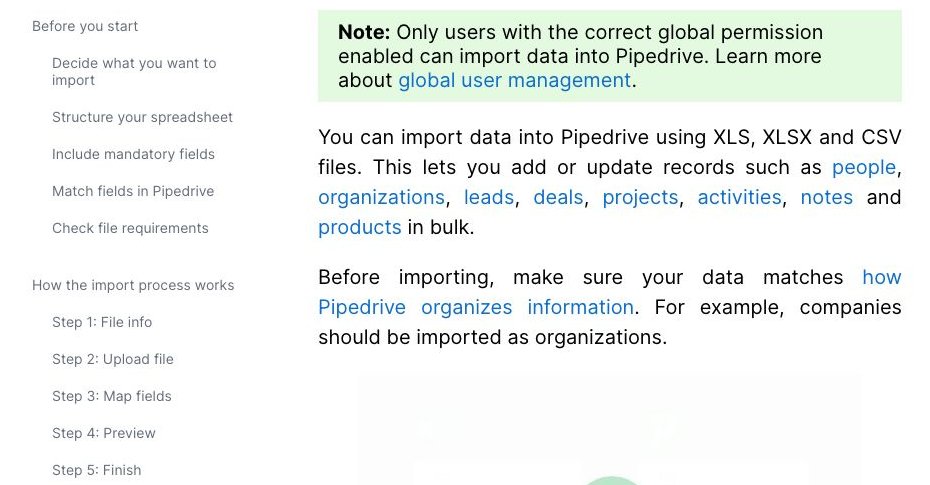
Then run a small test: import the 12 free sample rows from a list page first, open ten records, click the website and social links, and check that each contact sits under the right company. If that works, the full file will too. Pipedrive accepts XLS, XLSX and CSV files up to 200,000 rows and 50 MB; HubSpot and Salesforce both take CSV.
Skip the cleanup with a Bespoke plan
If you import lists every month, the split-and-map work repeats. On a Bespoke plan the agent builds lists to your brief and pushes verified leads straight to HubSpot, Instantly or Smartlead, so new matches land as contacts under the right company without a spreadsheet step. Bespoke Starter is $99 a month for 2,000 verified leads; Pro is $199 for 5,000. For a one-off import, a ready-made list is $29 once, with the free sample to test your mapping first. Comparing sources? See LeadLists vs Apollo and LeadLists vs Outscraper, and run any file through our lead list quality checklist before import.